WhatsApp Auto Messages:
How Businesses Can Send
Automated Messages
Manual replies don't scale. WhatsApp automation lets your business respond instantly, follow up automatically, and guide customers through entire journeys — while your team focuses on what matters.
What Are WhatsApp Auto Messages?
WhatsApp auto messages are pre-configured messages that send automatically based on specific triggers — without any manual action from your team. A customer sends a keyword, places an order, fills a form, or simply messages you for the first time — and a pre-built response fires instantly.
At the basic end, auto messages can be simple greeting replies or away-message notifications. At the advanced end, they become full conversation flows — multi-step sequences that qualify leads, answer FAQs, collect information, send order updates, and route conversations to the right team member, all on autopilot.
WhatsApp automated messages are only sent to customers who have opted in or initiated contact. When done correctly, they feel helpful and timely — not intrusive. The key is triggering the right message at the right moment in the customer journey.

Basic Automation vs Full Flow Automation
There are two levels of WhatsApp automation — and understanding the difference helps you choose the right tool for your business stage.
| Feature | 🏪 Business App (Basic) | ⚙️ Business API + Flow Builder |
|---|---|---|
| Greeting message on first contact | ✓ Yes | ✓ Yes |
| Away / out-of-hours message | ✓ Yes | ✓ Yes (with schedule) |
| Keyword-triggered auto replies | ◐ Limited | ✓ Full keyword flows |
| Multi-step conversation flows | ✗ No | ✓ Yes |
| Template message automation | ✗ No | ✓ Yes |
| Contact tagging and segmentation | ✗ No | ✓ Yes |
| CRM / e-commerce integration | ✗ No | ✓ Yes |
| Multi-agent handoff in flow | ✗ No | ✓ Yes |
| Visual drag-and-drop builder | ✗ No | ✓ Yes |
| E-commerce nodes (catalog, orders) | ✗ No | ✓ Yes |
The WhatsApp Business App's automation features are very limited — greeting and away messages only. To build multi-step flows, keyword triggers, template sequences, and chatbot journeys, you need the WhatsApp Business API, accessible through an authorised provider like Unique Digital Outreach.
What Can Businesses Automate on WhatsApp?
Almost any repetitive, time-sensitive, or predictable customer interaction is a candidate for automation. Here are the most impactful use cases businesses are running today.
Greet every new contact automatically the moment they message you — introduce your business, share a menu of options, and guide them to the right department without any human involvement.
Automatically send order confirmation, payment received, shipped, and delivery notifications as each event is triggered by your e-commerce or CRM system. Customers stay informed without your team lifting a finger.
Send automated appointment confirmations when a booking is made, a reminder 24 hours before, and a follow-up after the appointment. Reduce no-shows without any manual follow-up.
When someone messages you from a campaign or ad, trigger a flow that asks qualifying questions, captures their name and requirements, tags them by interest, and routes them to your sales team — automatically.
Build a keyword-triggered FAQ flow that answers the 20 most common questions your support team gets — pricing, locations, working hours, return policies — without any agent involvement.
Trigger automated payment confirmation messages, due-date reminders, and EMI alerts from your payment or billing system directly into WhatsApp — keeping customers informed on their financial interactions.
Automatically reach out to customers who haven't purchased or interacted in a defined period with a targeted message — a discount, a new product, or simply a check-in — to bring them back into your funnel.
Using nodes like Delivery Slots in the flow builder, let customers pick their preferred delivery time through a WhatsApp conversation — no app, no form, no friction.
Meet the Unique Digital Outreach Flow Builder
Unique Digital Outreach's Flow Builder is a visual, drag-and-drop interface that lets you design complete WhatsApp automation flows — without writing a single line of code. You connect nodes, set triggers, and define what happens at each step of the customer journey.
Here is what the Flow Builder looks like in the platform:
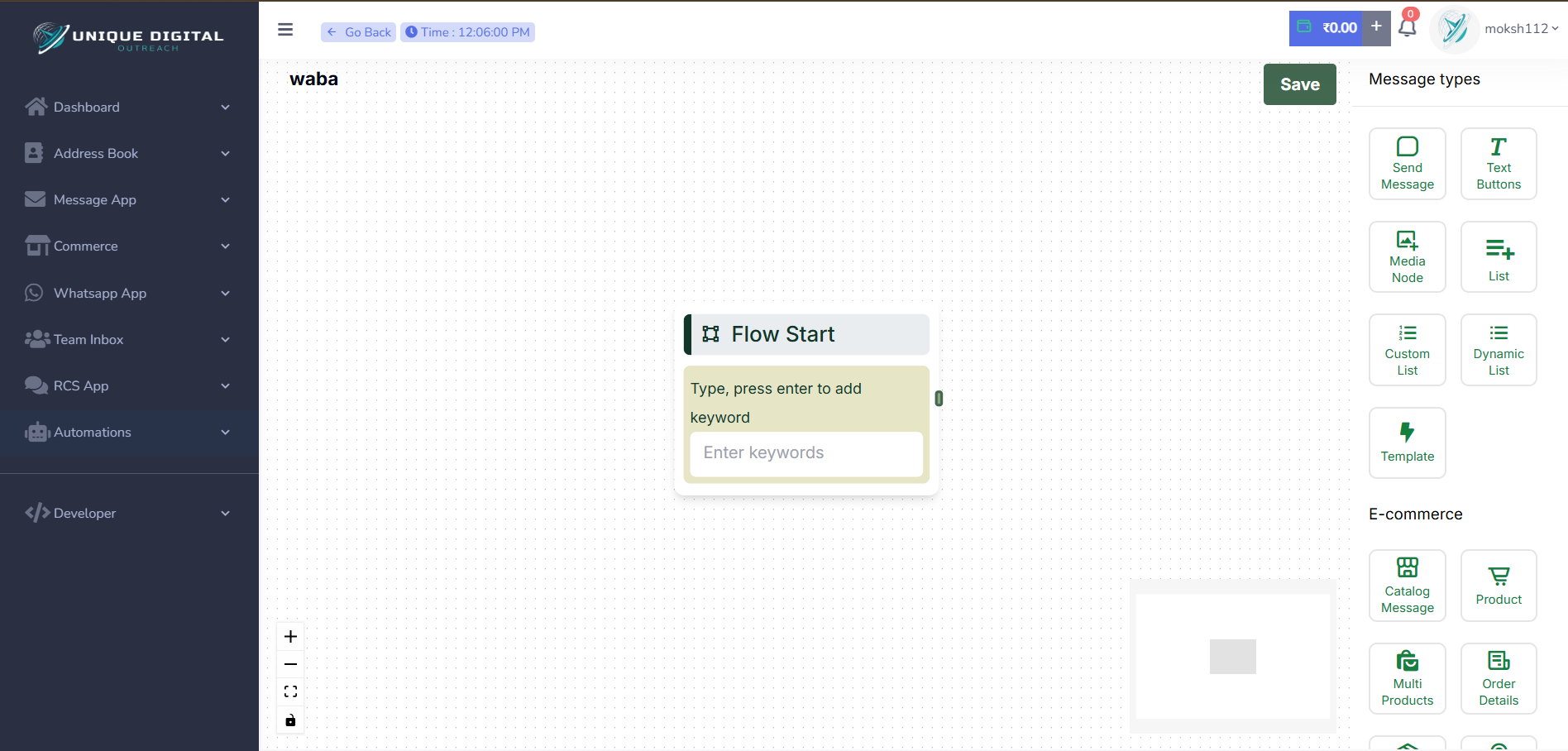
In the screenshot above, you can see the full platform layout: the left sidebar navigation with Dashboard, Address Book, Message App, Commerce, WhatsApp App, Team Inbox, RCS App, Automations, and Developer sections. The main canvas shows the Flow Start node — the entry point of every automation, with a keyword input field. On the right-hand panel, all available Message Types are ready to drag in: Send Message, Text Buttons, Media Node, List, Custom List, Dynamic List, Template, and E-commerce nodes including Catalog Message, Product, Multi Products, and Order Details.
Flow Builder Node Types — What Each One Does
Each node in the Flow Builder represents a specific action or message type. You pick the right node, configure it, and connect it to the next step. Here are the available node types:
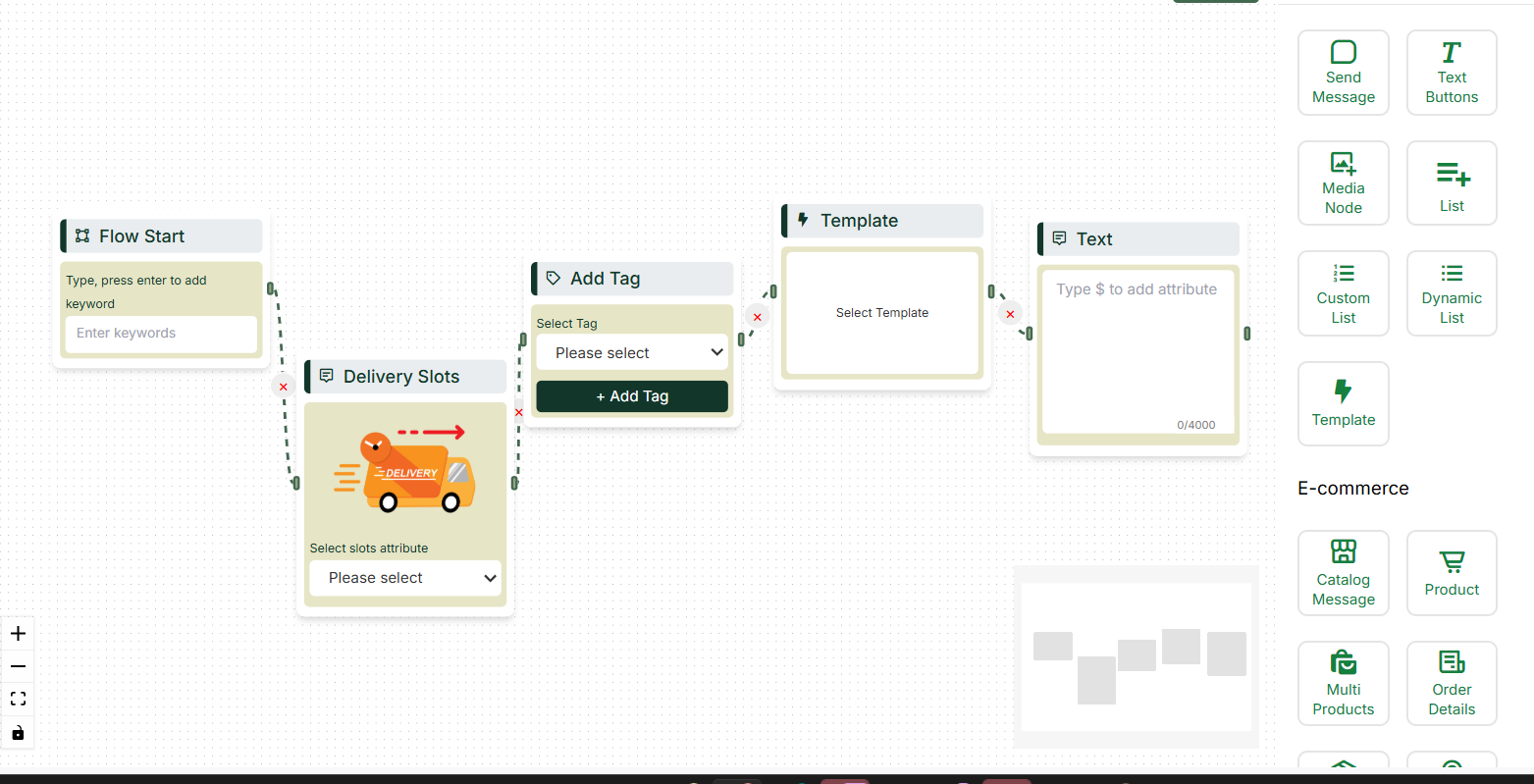
The second screenshot above shows a live, connected flow. From left to right: the Flow Start node (keyword trigger) connects via dashed lines to a Delivery Slots node — complete with a delivery truck graphic and a dropdown to select slot attributes. That connects to an Add Tag node with a tag selector dropdown and an "+ Add Tag" button to label the contact. The flow continues to a Template node (for sending a pre-approved WhatsApp template) and finally a Text node supporting up to 4,000 characters with attribute variables. The right panel shows the full range of node types available — including the E-commerce section with Catalog Message, Product, Multi Products, and Order Details nodes.
The entry point of every flow. Set keyword triggers that launch the sequence when a contact sends a matching word or phrase.
Send a plain text message to the contact. Use for welcome notes, confirmations, or any straightforward reply.
Send a message with tappable reply buttons. Ideal for presenting options like "Track Order / Contact Support / Browse Catalogue".
Send images, videos, documents, or audio files as part of the flow — for product visuals, brochures, or demo videos.
Present a menu of options as a list — perfect for FAQ categories, product categories, or department routing.
Send a pre-approved WhatsApp message template — for outbound notifications like order updates, payment alerts, or appointment reminders.
Create a fully customised list message with your own sections and items — for complex menus or multi-category selection flows.
Pull list options dynamically from your connected data source — ideal for real-time product availability, live slot booking, or personalised offers.
Automatically tag or label a contact when they reach this point in the flow — enabling segmentation, follow-up targeting, and CRM sync.
Let customers select delivery time slots directly in the WhatsApp chat — eliminating the need for a separate booking page or call.
Share your WhatsApp product catalogue in the chat — customers can browse, view product details, and add items to cart without leaving WhatsApp.
Display a customer's order summary, status, and details within the conversation — useful for post-purchase flows and support queries.
How to Build a WhatsApp Auto Message Flow — Step by Step
Building a flow in the Unique Digital Outreach Flow Builder takes minutes. Here is the process from start to first automated message.
Log into your Unique Digital Outreach dashboard. Go to Automations → Flow Builder from the left sidebar. Click "New Flow" and give it a name (e.g. "Welcome Flow" or "Order Update Flow"). The canvas opens with a blank Flow Start node already placed.
Click the Flow Start node. In the properties panel, type the keyword or phrase that will trigger this flow — for example, "Hi", "Order", or "Menu". When a customer sends this word, your flow activates automatically. You can also set a flow to trigger on any incoming message or on specific events.
Drag a Send Message or Text Buttons node from the right-side panel onto the canvas. Connect it to the Flow Start node by dragging from the output connector. Click the node and type your message — for example, a welcome text or a menu of options. For buttons, add up to 3 button labels.
Keep adding nodes and connecting them to create the full journey. Add a Template node to fire an approved message, an Add Tag node to label the contact, or a Delivery Slots node if you are taking bookings. Each node connects to the next, and branches can be created from button replies to send customers down different paths based on what they choose.
Once your flow is ready, click Save in the top-right corner of the canvas. Then toggle the flow to Active. From this moment, every incoming message that matches your trigger keyword will automatically enter your flow — and your business will respond instantly, 24 hours a day.
Why WhatsApp Automation Makes a Real Difference

1. Instant response, every time
Studies show that response time is one of the top factors in customer satisfaction and conversion. An automated WhatsApp flow responds in under one second — at 3 AM, on a public holiday, or when your entire team is busy. No lead goes cold, no query goes unanswered.
2. Your team handles only what matters
When FAQs, status checks, booking confirmations, and lead qualification are handled automatically, your support and sales team only steps in for complex or high-value conversations. This dramatically increases the output of a small team without adding headcount.
3. Consistent, on-brand communication
Automated flows send the same well-crafted message every time — no typos, no missed information, no off-brand tone. Every customer gets the same quality of communication regardless of who is on shift or how busy the day is.
4. Scalable without proportional cost
Whether you receive 10 WhatsApp messages a day or 10,000, your automation handles them all without any change in infrastructure. The flow that manages 50 conversations manages 5,000 just as effectively.
The most effective WhatsApp setups combine automation for the predictable, high-volume interactions with a smooth handoff to a live agent for nuanced or complex queries. The Flow Builder supports team inbox routing nodes that transfer a conversation to a specific agent or department at any point in the flow.
Frequently Asked Questions
What are WhatsApp auto messages?
Do I need coding skills to build WhatsApp automation flows?
What types of messages can be automated on WhatsApp?
Is WhatsApp automation available on the Business App?
Can I send automated messages to customers who haven't messaged me first?
Can a flow branch differently based on what a customer replies?
Start Building Your First WhatsApp Flow Today
Unique Digital Outreach's Flow Builder makes WhatsApp automation accessible to any business — no code, no complexity. Build your first flow in minutes and let your business respond automatically, 24/7.
Get Started with Flow Builder →